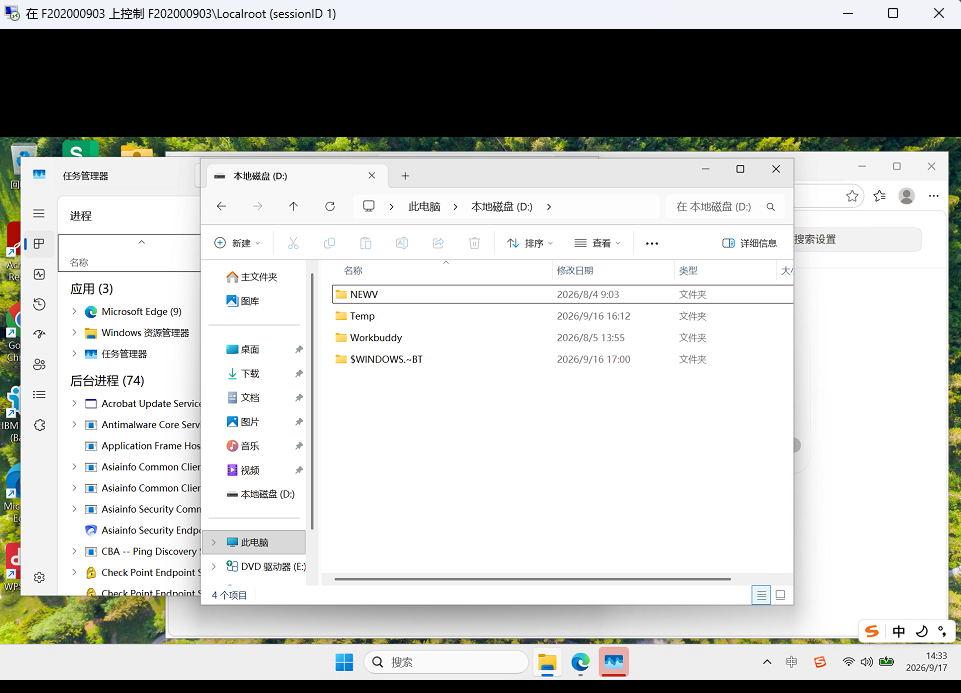
远程桌面镜像连接同步操控
在日常运维中远程桌面是第一链接,远程登陆后本地将无法显示正常界面,本方案通过powershell脚本,利用psexec.exe工具实现远程镜像桌面连接策略注入和目标计算机用户会话列表的拉取,并等待发起用户输入需要镜像的用户ID从而实现本地与远程的同步显示和键盘鼠标的双方操控,对需要交互演示的运维提供较大的便利,免除第三方桌管系统的部署或临时补充(如桌管系统失效时)。
1、以下为powershell可行脚本(保存为rpd.ps1):
# ====================== 配置区 可自行修改 ======================
$PSToolsPath = "D:PSToolsPsExec.exe"
$RemoteUser = ".administrator"
$RemotePass = "管理员密码"
$WaitTimeAfterWake = 5 # 唤醒后等待秒数,网络差可适当调大到8
# =============================================================

# 1. 获取目标计算机名
$ComputerName = Read-Host "请输入目标计算机名或 IP"
if ([string]::IsNullOrWhiteSpace($ComputerName)) {
    Write-Host "计算机名不能为空!" -ForegroundColor Red
    exit
}

Write-Host "----------------------------------------" -ForegroundColor Cyan
Write-Host "1. 正在远程配置桌面镜像策略..." -ForegroundColor Yellow

$Target = "\$ComputerName"

# 替换原有的sc启动命令,先查询服务状态再决定是否启动
try {
    $serviceStatus = sc.exe \$ComputerName query termservice | findstr "STATE"
    if ($serviceStatus -notmatch "RUNNING") {
        Start-Process -FilePath "sc.exe" -ArgumentList "\$ComputerName", "start", "termservice" -NoNewWindow -Wait -ErrorAction SilentlyContinue
    }
} catch {}


try {
    # 写入免确认阴影权限
    $RegCmd1 = 'reg add "HKLMSOFTWAREPoliciesMicrosoftWindows NTTerminal Services" /v Shadow /t REG_DWORD /d 2 /f'
    Start-Process -FilePath $PSToolsPath -ArgumentList $Target, "-u", $RemoteUser, "-p", $RemotePass, "-s", "-h", "cmd", "/c", $RegCmd1 -NoNewWindow -Wait -ErrorAction Stop
    # 开启远程协助权限
    $RegCmd2 = 'reg add "HKLMSOFTWAREPoliciesMicrosoftWindows NTTerminal Services" /v fAllowToGetHelp /t REG_DWORD /d 1 /f'
    Start-Process -FilePath $PSToolsPath -ArgumentList $Target, "-u", $RemoteUser, "-p", $RemotePass, "-s", "-h", "cmd", "/c", $RegCmd2 -NoNewWindow -Wait -ErrorAction Stop
} catch {
    Write-Host "警告: 策略配置失败,可能已存在配置。错误: $_" -ForegroundColor Yellow
}

# 2. 获取用户会话列表
Write-Host "2. 正在获取目标机用户会话列表..." -ForegroundColor Yellow
$RawList = $null

# 优先用qwinsta获取
try {
    $RawList = qwinsta /server:$ComputerName 2>$null
} catch { $RawList = $null }

# qwinsta失败则用PsExec远程获取
if (-not $RawList) {
    $TempFile = ".temp_user.txt"
    try {
        Start-Process -FilePath $PSToolsPath -ArgumentList $Target, "-u", $RemoteUser, "-p", $RemotePass, "-h", "cmd", "/c", "query user > `"$TempFile`"" -NoNewWindow -Wait -ErrorAction Stop
        if (Test-Path $TempFile) {
            $RawList = Get-Content $TempFile
            Remove-Item $TempFile -ErrorAction SilentlyContinue
        }
    } catch { $RawList = $null }
}

if (-not $RawList) {
    Write-Host "错误:无法获取用户列表,请检查网络或凭据。" -ForegroundColor Red
    Read-Host "按回车键退出..."
    exit
}

Write-Host "----------------------------------------" -ForegroundColor Cyan
$RawList | Out-String | Write-Host
Write-Host "----------------------------------------" -ForegroundColor Cyan

# 3. 完全移除自动识别逻辑,直接等待手动输入会话ID
Write-Host "✅ 会话列表拉取成功,请根据上方显示的列表,手动输入要连接的会话ID" -ForegroundColor Green
$SessID = Read-Host "请输入目标会话ID"

if ([string]::IsNullOrWhiteSpace($SessID)) {
    Write-Host "未输入有效ID,程序退出。" -ForegroundColor Red
    exit
}

# 4. 会话唤醒+黑屏预防处理
# 先判断输入的会话状态,自动适配唤醒逻辑
$IsDisc = $false
$IsCons = $false
foreach ($Line in $RawList) {
    if ($Line -match "s+$SessIDs+断开") {
        $IsDisc = $true
    }
    if ($Line -match "consoles+w*s+$SessIDs+运行中") {
        $IsCons = $true
    }
}

if ($IsDisc) {
    if ($IsCons) {
        Write-Host "检测到Console会话锁屏,正在唤醒+修复图形渲染环境..." -ForegroundColor DarkYellow
        # 唤醒锁屏会话
        $TsconCmd = "tscon $SessID /dest:console"
        Start-Process -FilePath $PSToolsPath -ArgumentList $Target, "-u", $RemoteUser, "-p", $RemotePass, "-s", "-i", $SessID, "cmd", "/c", $TsconCmd -NoNewWindow -Wait
        Start-Sleep -Seconds 2
        # 强制重启目标会话的桌面进程,解决黑屏无桌面问题
        $FixExplorerCmd = "taskkill /f /im explorer.exe 2>nul & start explorer.exe"
        Start-Process -FilePath $PSToolsPath -ArgumentList $Target, "-u", $RemoteUser, "-p", $RemotePass, "-s", "-i", $SessID, "cmd", "/c", $FixExplorerCmd -NoNewWindow -Wait
        Start-Sleep -Seconds $WaitTimeAfterWake
    } else {
        Write-Host "检测到断开的RDP会话,正在静默唤醒..." -ForegroundColor DarkYellow
        $RdpPath = "$env:TEMPtemp_shadow.rdp"
        # RDP优化配置,禁用容易导致黑屏的选项
        $RdpContent = @(
            "screen mode id:i:2",
            "full address:s:$ComputerName",
            "username:s:$RemoteUser",
            "prompt for credentials:i:0",
            "audiomode:i:2",
            "bitmapcachepersistenable:i:0",
            "allow desktop composition:i:0",
            "allow font smoothing:i:0",
            "connection type:i:1",
            "disable wallpaper:i:1"
        )
        $RdpContent | Out-File $RdpPath -Encoding ascii -Force

        # 保存凭据
        Start-Process -FilePath "cmd.exe" -ArgumentList "/c cmdkey /generic:TERMSRV/$ComputerName /user:$RemoteUser /pass:$RemotePass" -NoNewWindow -Wait
        # 临时唤醒连接
        $Proc = Start-Process -FilePath "mstsc" -ArgumentList "`"$RdpPath`"" -PassThru
        Start-Sleep -Seconds 4
        $Proc | Stop-Process -Force -ErrorAction SilentlyContinue
        # 清理凭据
        Start-Process -FilePath "cmd.exe" -ArgumentList "/c cmdkey /delete:TERMSRV/$ComputerName" -NoNewWindow -Wait
        Remove-Item $RdpPath -ErrorAction SilentlyContinue
    }
}

# 5. 生成优化版阴影连接配置
$ShadowRdpPath = "$env:TEMPtemp_shadow_connect.rdp"
@(
    "screen mode id:i:2",
    "full address:s:$ComputerName",
    "bitmapcachepersistenable:i:0",
    "allow desktop composition:i:0",
    "connection type:i:1",
    "disable wallpaper:i:1",
    "disable full window drag:i:1",
    "disable menu anims:i:1",
    "disable themes:i:1",
    "audiomode:i:0"
) | Out-File $ShadowRdpPath -Encoding ascii -Force

Write-Host "3. 正在发起免确认阴影连接..." -ForegroundColor Green
Write-Host "💡 提示:如果连接后出现黑屏,请按下 Ctrl+Alt+End 唤醒安全桌面,鼠标即可恢复操作" -ForegroundColor Cyan

# 发起带优化配置的阴影连接
$MstscArgs = @("`"$ShadowRdpPath`"", "/shadow:$SessID", "/v:$ComputerName", "/control", "/noConsentPrompt")
Start-Process -FilePath "mstsc" -ArgumentList $MstscArgs -Wait

# 清理临时文件
Remove-Item $ShadowRdpPath -ErrorAction SilentlyContinue
Write-Host "连接已结束。" -ForegroundColor Cyan
Read-Host "按回车键关闭窗口..."
2、可通过创建rdp.bat批处理脚本双击运行来调用rdp.ps1(文件在同一目录下)
@echo off
powershell -NoProfile -ExecutionPolicy Bypass -File "%~dp0rdp3.ps1"
3、执行交互
双击rdp.bat或直接在powershell窗口执行.rdp.ps1
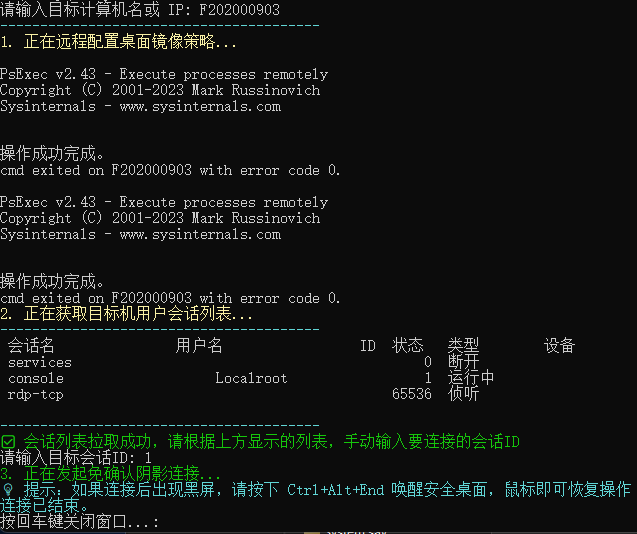
如图,error code 0并不是执行出错,这个恰恰相反是该节点执行成功的返回代码。
用户会话列表拉出后会显示目标计算机当前会话用户,类型为运行中的ID状态列显示的数值为有效id,如有多个用户,则在下方输入需要连接的对应用户ID后回车即进行连接,连接成功会自动弹出目标计算机用户的桌面界面。